A Google Meet attendance report is useful only if it answers the questions teachers ask after class. Who arrived late? Who dropped and rejoined? Who raised a hand? Which breakout room did a student join, and for how long?
RollCall adds those details to Google Meet attendance tracking. You get per-student timelines, breakout room records, hand raise counts, and CSV exports while the data stays in your browser's local storage.
Why Teachers Need Advanced Attendance Reports
Basic attendance tracking tells you who showed up. That is enough for some meetings. For classes, it often leaves the useful part out.
Questions teachers actually ask
- Arrival patterns: Which students often join ten minutes late?
- Participation: Who raised a hand during the session?
- Follow-up: Which students are missing more time each week?
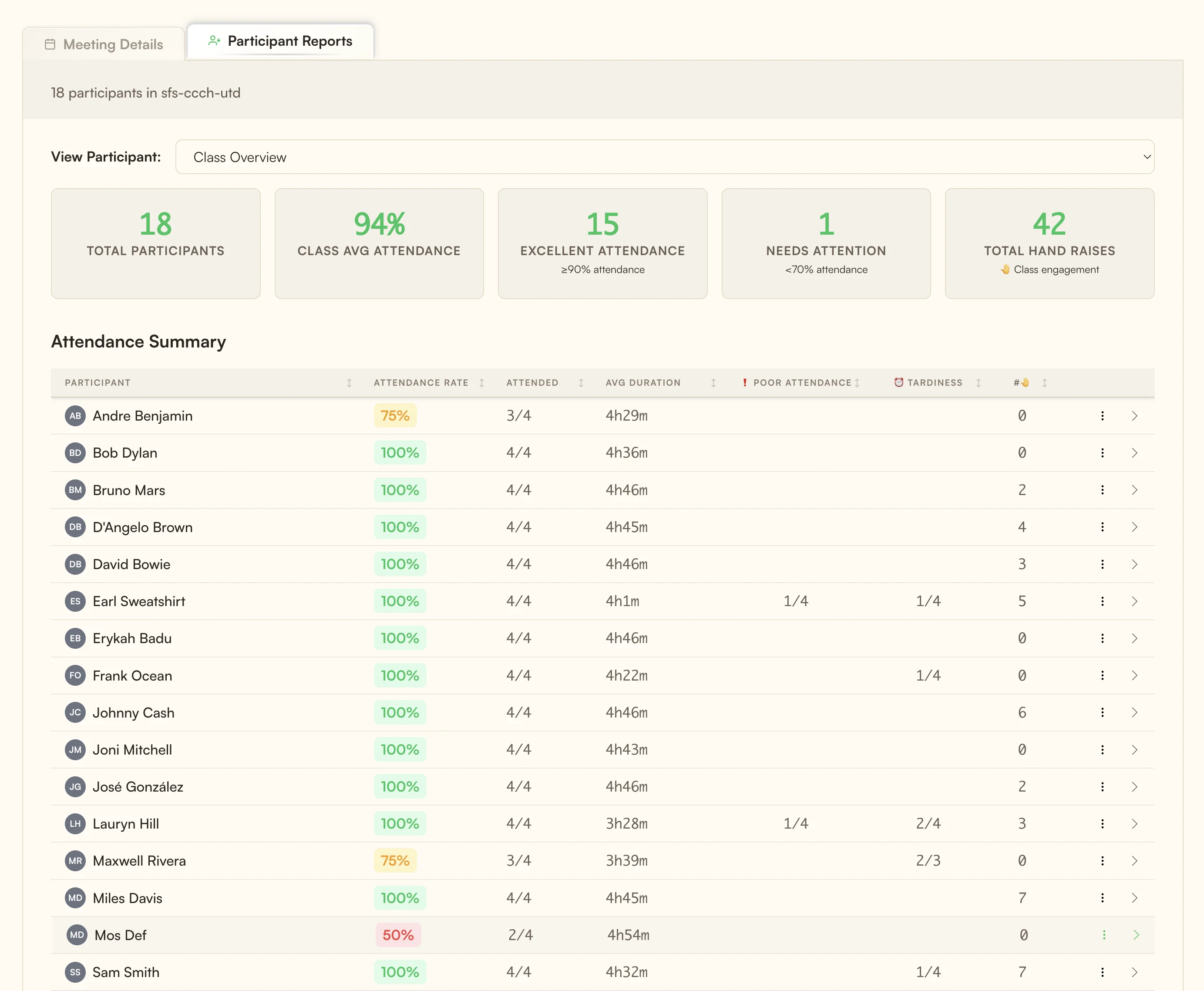
RollCall answers those questions with reports you can inspect after the call. Unlike basic post-meeting reports, it keeps a running local history on your computer so you can review patterns across sessions.
Meeting-Specific Filtering & Multi-Session Management
If you teach multiple sections of the same course, one long attendance list gets messy quickly. RollCall's meeting filter lets you isolate a single Meet link, class section, or recurring session.
How Meeting Filtering Works
Every Google Meet has a unique meeting ID, such as "abc-defg-hij". RollCall captures that ID and lets you filter reports by meeting.
All Meetings (Global View)
   └── See aggregate data across all your sessions

Math 101 - Section A (abc-defg-hij)
   └── Filter to just Monday/Wednesday sessions

Math 101 - Section B (xyz-uvwt-qrs)
   └── Filter to just Tuesday/Thursday sessions

Office Hours (mno-pqrs-tuv)
   └── Track optional attendance separately
Filtering features
- Saved filters: RollCall remembers the last meeting filter you used.
- Section comparison: Review attendance patterns across different class sections.
- Automatic meeting detection: New meetings appear in the filter list as RollCall sees them.
- Historical records: Older meetings stay available for end-of-term review unless you delete them.
Per-Student Analytics & Engagement Tracking
Per-student reports are where the record becomes useful. Instead of scanning every meeting one by one, you can open a student's history and see attendance rate, joins, leaves, hand raises, and session-by-session timing.

Individual student reports include
- Attendance rate: 92% (23 of 25 sessions attended)
- Connection stability: 3.2 average joins per session
- Hands raised: 12 total across all sessions
- Attendance calendar: Visual heatmap of attendance patterns
- Timeline view: Detailed join and leave timeline for each session
Attendance and participation signals
Beyond a present-or-absent mark, RollCall tracks the signals teachers usually check after class.
Late arrival rate
Percentage of sessions where the student joined more than 10 minutes after the meeting started. Helps identify students who might need schedule adjustments or are struggling with punctuality.
Early departure rate
Tracks how often students leave significantly before the session ends. High rates might indicate scheduling conflicts, engagement issues, or technical problems.
Meeting completion rate
Percentage of sessions where the student stayed until within 5 minutes of the meeting end. Higher values indicate better engagement and commitment.
Breakout room monitoring for group work
Breakout rooms are where attendance gets harder to judge from memory. A student may be present in the main room, leave for a group activity, return late, or move between rooms while you are teaching.
RollCall tracks breakout room participation so the report shows more than the main session headcount. After class, you can review which students were present during group work, how long they stayed, and whether anyone missed the activity entirely.
- Room participation: See which students joined breakout activities.
- Time in room: Check how long a student stayed in a breakout room.
- Return timing: Spot students who came back late or disconnected during group work.
Advanced Engagement Metrics Beyond Attendance
Attendance is not the same as participation. A student can join on time, leave early, rejoin twice, and still be counted as present in a basic report. RollCall keeps the timeline visible so you can judge the record in context.
Hand Raise Tracking
RollCall automatically detects and counts when students use Google Meet's hand raise feature:
Class participation metrics
- 47 total hands raised: This week across all sessions
- 18 of 30 active participants: Students who raised a hand at least once
- 2.6 average per session: Questions per class period
Session Stability Scoring
Connection issues can look like disengagement if you only see the final attendance total. Stability signals make the distinction easier to review.
- Technical issues: Multiple rejoins during one session
- Repeated absence patterns: Joining late and leaving early across several sessions
- Stable participation: Staying connected for the full class period
Generating and exporting reports
Attendance data is useful when it is easy to review, export, and file. RollCall gives you a report view for quick checks and CSV export when you need the data somewhere else.
Interactive HTML Reports
The main report opens in a new tab and groups the meeting record into sections you can scan quickly.
Report Interface Features
- Tabbed navigation: Overview, Analytics, and Participants tabs
- Expandable meetings: Open the sessions you need and collapse the rest
- Visual summaries: Charts for attendance patterns and participation
- Sortable tables: Click headers to sort by a metric
- Dark mode support: Matches system preferences
CSV Export for Spreadsheets
For gradebooks, HR systems, or your own spreadsheet, export CSV files with the fields teachers usually need.
Date, Student Name, Meeting ID, Total Minutes, Join Count,
Leave Count, First Join Time, Last Leave Time, Attendance Rate,
Late Arrival, Early Departure, Hands Raised, Breakout Minutes,
Session Stability, Engagement Score, Notes
Getting Started with RollCall's Advanced Reports
To start using RollCall reports, install the extension and open a Google Meet.
-
Install RollCall
Visit the Chrome Web Store and click "Add to Chrome". No account creation or setup required.
-
Join Your Google Meet
Start or join any Google Meet session. RollCall automatically begins tracking when it detects you've joined.
-
Open your reports
Click the RollCall icon in your browser toolbar, then select "View Detailed Report" to open the report view.
-
Review the record
Use filters to view specific meetings, click on student names for individual analytics, and export reports as needed.
Teacher workflow tips
Set up meeting naming conventions
While RollCall tracks by meeting ID, you can rename meetings in your reports for easier identification (e.g., "Biology 101 - Section A" instead of "abc-defg-hij").
Review weekly patterns
Check the Participant Reports every week to identify attendance trends and address issues before they become problems.
Export regular backups
While RollCall stores data locally, export CSV backups monthly for your records and gradebook integration.
Share reports with students
Consider sharing individual reports with students so they can see their own engagement patterns and take ownership of their participation.
Classroom scenarios and use cases
These reports are most useful when something looks off and you need the record quickly. A student says they were disconnected for five minutes. A breakout group says one member never joined. A parent asks why participation dropped this month.
In each case, the useful answer is not a vague engagement score. It is the meeting timeline: when the student joined, when they left, whether they rejoined, whether they raised a hand, and what happened during breakout work.
Frequently Asked Questions
Does RollCall work with free Google accounts?
Yes. RollCall works with any Google account type, including free Gmail accounts, Google Workspace accounts, and educational accounts. No special permissions or paid subscriptions are needed.
How does breakout room tracking work?
RollCall automatically detects when students move to breakout rooms using advanced DOM analysis. It tracks time spent in each room, group composition, and transitions back to the main session. This works in any language and requires no configuration.
Can I track multiple classes or sections separately?
Yes. Each Google Meet has a unique ID that RollCall captures. You can filter reports by meeting ID to view specific classes, sections, or session types. The filter remembers your selection.
What's included in per-student reports?
Individual reports include attendance rate, total time attended, join/leave patterns, engagement metrics (hand raises), breakout room participation, late arrival and early departure rates, and session stability scores.
How long is attendance data stored?
RollCall stores data locally in your browser indefinitely. You control when to delete data, and you can export CSV backups anytime. We recommend exporting regularly for record-keeping.
Can students see the attendance reports?
No, RollCall only tracks and displays data for the person who installed it. Students cannot see your reports unless you choose to share them (e.g., via screenshot or export).
Does it work with Google Classroom?
RollCall works with any Google Meet, including those launched from Google Classroom. While it doesn't integrate directly with Classroom's gradebook yet, you can export CSV files to import attendance data into your grading system.
What about student privacy?
RollCall stores attendance data locally in your browser. It does not send meeting records to an external dashboard, and you control when to export or delete the data.
Related Resources

Start using RollCall reports
Try RollCall today for visual Google Meet attendance tracking with local-first privacy protection.
Add RollCall to Chrome