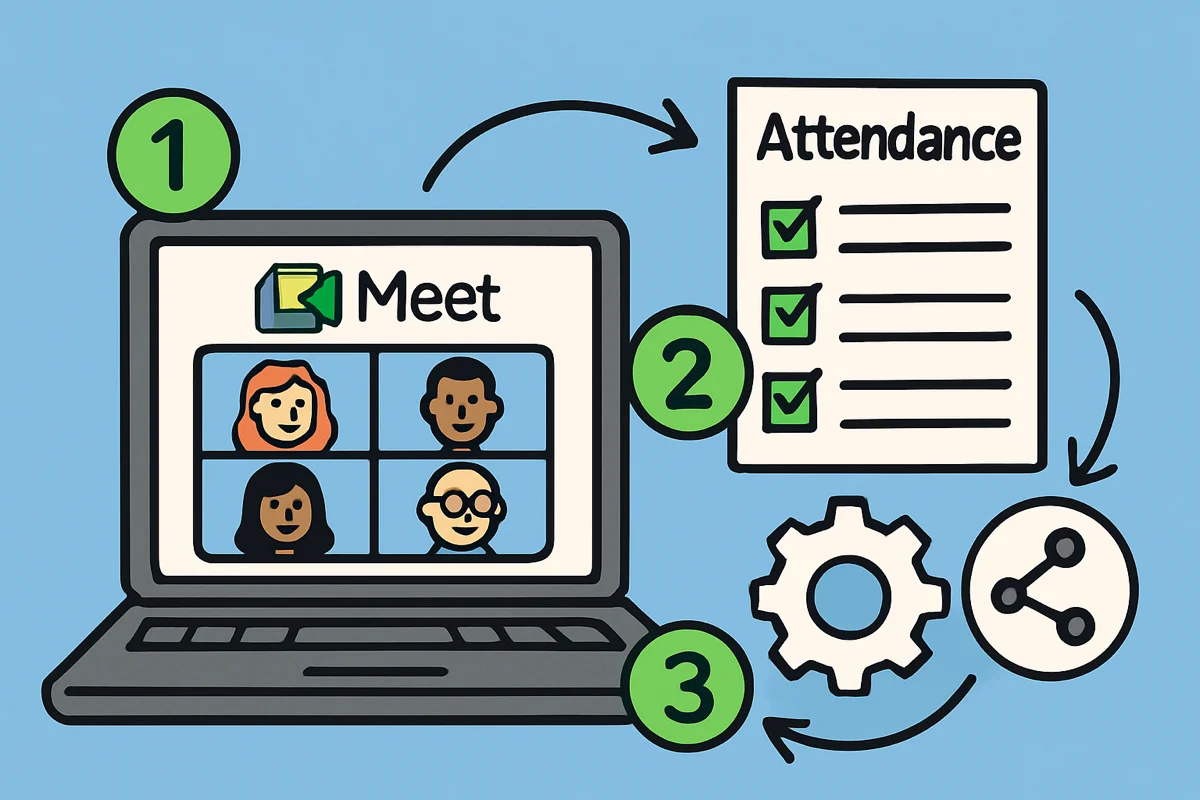
Google Meet attendance tracking gets tricky when you do not have Google Workspace. Free Google accounts do not include built-in attendance reports, and eligible Workspace editions still focus on post-meeting summaries.
If you need join times, leave times, reconnects, timelines, and CSV export, you have a few options. This guide covers RollCall, manual screenshots, and screen recording so you can pick the method that fits your meeting.
Start tracking attendance
Download the free RollCall Google Meet attendance extension to track Google Meet attendance in real time.
Add RollCall to ChromeWhy Google Meet Attendance Tracking Matters
Attendance tracking in virtual meetings is useful because memory is unreliable after a busy call. A record gives you names, times, and context.
For Educators
- Attendance records: Keep the class record your institution requires.
- Student follow-up: Identify students who miss class time or leave early.
- Participation grades: Use attendance data in your gradebook workflow.
- Parent communication: Bring concrete dates and times to conferences.
For Corporate Trainers
- Training completion: Confirm who stayed for required sessions.
- Attendance patterns: See where people drop or arrive late.
- Documentation: Keep records for internal training requirements.
For Meeting Organizers
- Accountability: Track team meeting participation.
- Planning: Compare expected and actual attendance.
- Follow-up: Identify who needs the recording or meeting summary.
The Google Workspace Limitation
Google's built-in attendance tracking is available only on select Google Workspace editions, not on free Google accounts. Here's what you get with eligible Workspace plans:
Workspace availability and behavior
- Available on Education Plus and the Teaching and Learning Upgrade; some Business/Enterprise editions include it (plan-dependent)
- Reports are emailed to the meeting organizer after the meeting
- Automatic participant list and join/leave timestamps
- See Google's documentation for current availability: https://support.google.com/meet/answer/10098063
Limitations of built-in reports (typical):
- Post-meeting delivery (no real-time analytics during the call)
- Focused on join/leave and total duration (fewer engagement metrics)
- Limited historical organization and filtering compared to dedicated tools
Free Google account limitations
- No built-in attendance tracking
- No automatic participant reports
- Manual participant list management
- Limited meeting analytics
Cost consideration: Native attendance reports are tied to paid Workspace editions, which may be impractical for individual educators or small organizations.
Why use RollCall even if you have Workspace?
Even with eligible Workspace editions, many teams want deeper analytics and easier record-keeping:
- Real-time monitoring and visual timelines for each participant
- Timeline and summary views beyond basic join/leave totals
- Local-only storage and privacy-first design (no accounts, no cloud)
- Historical data management and CSV exports for gradebooks/HR systems
Best free alternatives for attendance tracking
1. RollCall Chrome Extension Recommended
Best for: Automated Google Meet attendance tracking without Workspace
- Free: No subscription fees.
- Local storage: Attendance data stays in your browser unless you export it.
- Reports: Participant timelines, summaries, and CSV export.
- Live tracking: See attendance while the meeting is running.
- Fast setup: Works after installation.
2. Manual Screenshot Method
Best for: Occasional use or backup tracking
- No software required: Uses built-in screenshot tools.
- Manual work: You need to capture and reconcile each meeting yourself.
- Limited data: Screenshots show one point in time.
- No automatic reports: Any analysis happens later in a spreadsheet.
3. Screen Recording Solutions
Best for: Full session documentation
- Full record: Captures the meeting as it happened.
- Large files: Recordings can take significant storage.
- Privacy burden: Recording captures meeting content, not just attendance.
- Manual review: You still need to watch or scrub the recording.
Method 1: Free Google Meet Attendance Tracker - RollCall Extension (Recommended)
RollCall is the simplest option when you want Google Meet attendance tracking without Google Workspace and without rebuilding the record by hand after every call.
Installation Steps
-
Install the Extension
- Visit the Chrome Web Store
- Click "Add to Chrome"
- Confirm installation in the popup
-
Start a Google Meet Session
- Create or join any Google Meet as usual
- RollCall tracker automatically detects the meeting
- No additional setup or configuration required
-
Automatic Tracking Begins
- Participant join/leave times recorded automatically
- Real-time dashboard shows current attendees
- Timeline view tracks join, leave, and rejoin patterns
Key features in detail
Participant reports
- Tabular participant report for each meeting, including name, first join, last leave, and total minutes.
- Tracks multiple join/leave events and flags late arrivals/early departures
- One-click "View Attendance" from the extension popup
- Export-ready structure for gradebooks and HR systems
Detailed timeline reports

- Visual timelines: See exactly when each participant joined and left.
- Attendance patterns: Identify late arrivals and early departures.
- Session summaries: Track meeting duration and participation rates with an attendance tracker for Google Meet.
Attendance dashboard example
Meeting: Math Class - January 15, 2026
Duration: 50 minutes
Peak Attendance: 28 participants
Average Session Time: 42 minutes

Participant Insights:
• 5 participants joined late (>5 minutes)
• 3 participants left early (>10 minutes before end)
• 2 participants had multiple join/leave events
Privacy and security
- Local storage only: Attendance data remains in your browser.
- No account required: Start using the extension immediately.
- Data minimization: RollCall focuses on attendance records, not unrelated meeting content.
- No cloud dashboard: Meeting records are not sent to an external reporting service.
- Your export choice: Export CSVs or back up local data when you need to.
Export and reporting
- CSV export: Compatible with Excel, Google Sheets, and gradebooks.
- Meeting summaries: Review attendance after each session.
- Historical data: Access past meeting records anytime.
- Filtered reports: Organize data by date, participant, or meeting.
- Local backup and restore: Export or import your dataset from Chrome's local storage.
Step-by-Step Usage Guide
During the meeting:
- Start or join your Google Meet session
- RollCall tracks your meeting automatically
- Click the extension icon in your Chrome toolbar to view the attendance dashboard
- Monitor participant attendance throughout the session
After the meeting:
- Click RollCall extension icon
- View detailed attendance report with timelines
- Export data to CSV if needed
- Access historical meeting data anytime
Method 2: Manual Screenshot Attendance Tracking for Google Meet
For users who prefer not to install browser extensions, manual screenshots provide a basic attendance tracking option. As a teacher, I took three screenshots per class: beginning, middle, and end. Then I reconciled attendance afterward in Google Sheets.
Tips:
- Keep it lean and consistent: capture the participant list at the beginning, mid-session, and in the final minutes
- Ensure all names are visible: zoom out in your browser so the entire list fits on one screen
- Name files with meeting name and timestamp; store in a consistent folder structure
- Reconcile presence afterward in a simple sheet; note late arrivals and early departures
Advantages and Limitations
Advantages:
- No software installation required
- Works on any device with screenshot capability
- You control where the screenshots are stored
- Simple process for small meetings
Limitations:
- Manual process for every meeting
- No automated reports
- Easy to miss attendance changes between screenshots
- Difficult to track large meetings (20+ participants)
- No historical trend analysis unless you build it yourself
Screenshot method tips
Timing strategy:
- Take screenshots every 10-15 minutes for meetings under 1 hour
- Every 20-30 minutes for longer sessions
- Always capture first 5 and last 5 minutes
Organization tips:
- Name screenshot files with meeting date and time
- Use consistent folder structure:
/Attendance/2026/January/ - Create template spreadsheets to speed data entry
Method 3: Screen Recording for Google Meet Attendance Documentation
Screen recording gives you the fullest meeting record, but it also records the meeting content. Use it only when that level of documentation is appropriate.
Recommended screen recording tools
Free options
- OBS Studio: Full-featured and free
- Built-in Tools: Windows Game Bar, macOS QuickTime
- Online Tools: Loom (limited free tier), Screencastify
Method comparison
Choose RollCall Extension If:
- You want automated attendance tracking.
- You need timelines, summaries, and CSV export.
- You value local storage.
- You host regular meetings that need consistent records.
- You need CSV export for gradebooks or HR systems.
Choose Manual Screenshots If:
- You have infrequent meetings.
- You cannot install browser extensions in a restricted environment.
- You only need basic attendance verification.
- You prefer manual control over the record.
Choose Screen Recording If:
- You need full meeting documentation.
- You are comfortable handling consent and privacy requirements.
- You have enough storage capacity.
- You want to capture both attendance and meeting content.
- You need evidence for a specific policy or review process.
Advanced Google Meet Attendance Analytics and Management Tips
Data analysis and reports
Useful metrics to track:
-
Attendance rates
- Overall meeting attendance percentage
- Individual participant consistency
- Trend analysis over time periods
-
Attendance patterns
- Average session duration per participant
- Late arrival frequency and patterns
- Early departure patterns and reasons
-
Meeting timing
- Peak attendance times within sessions
- Correlation between content and attendance
- Participant feedback vs. attendance data
Legal and privacy considerations
Privacy laws and compliance
This is not legal advice, but attendance records can include personal data: names, meeting IDs, timestamps, and participation history. Check your school, district, company, or local policy before storing or sharing records.
For most Google Meet attendance tracking workflows, a safer default is simple:
- Tell participants: Make it clear that attendance is being tracked.
- Collect only what you need: Names, join times, leave times, and meeting records are usually enough.
- Limit sharing: Export records only to the systems that need them.
- Set a retention policy: Decide when old attendance records should be deleted or archived.
Frequently Asked Questions
Can I track attendance in Google Meet without participants knowing?
No. Participants should be informed when attendance is being tracked. A Google Meet tracker like RollCall captures information already visible in the Google Meet interface.
Does attendance tracking work with Google Meet free accounts?
Yes, all methods described in this guide work with free Google accounts. You don't need Google Workspace or paid Google services to track attendance effectively.
How accurate is automated attendance tracking?
RollCall tracks visible join and leave events while you are in the meeting and the extension is active. Accuracy depends on participants having visible, consistent names throughout the meeting.
What happens if someone joins with a phone vs. computer?
Attendance tracking works regardless of device type. Participants joining via phone, tablet, or computer are all tracked equally. However, participants must have identifiable names visible in the meeting.
Can I track attendance in breakout rooms?
Yes. RollCall can track breakout room participation so teachers can review who joined group work and how long they stayed. For high-stakes records, spot-check important sessions against your class notes.
How can I use attendance data for grading?
Common approaches include participation points, minimum-time requirements, late-arrival policies, or simple completion records. Communicate attendance grading policies in your syllabus before you rely on the data.
What about students with connectivity issues?
Document technical difficulties when students report them. If attendance affects grading or completion, leave room for legitimate connectivity issues and explain the appeal process clearly.
Can I track attendance for large lectures (100+ students)?
Yes, Google Meet trackers like RollCall handle large meetings effectively. Manual methods become impractical beyond 30-40 participants.
Where is attendance data stored?
Storage depends on the method. RollCall stores data locally in your browser. Manual screenshots are stored wherever you save them. Screen recordings may use local or cloud storage depending on the tool.
Conclusion
Google Meet attendance tracking without Google Workspace is possible. The right method depends on how often you meet and how detailed the record needs to be.
Key takeaways
- RollCall: Best fit for regular meetings that need timelines, reports, and CSV export.
- Manual methods: Useful for occasional meetings, but slow for regular tracking.
- Privacy: Tell participants what you track and where records are stored.
- Security: Keep attendance records in approved storage locations.
- Follow-up: Use attendance patterns to support students or confirm training completion.
For recurring classes or training sessions, automated records are usually worth it. They save the end-of-meeting scramble and give you a clear timeline when someone asks what happened.
Ready to start tracking attendance?
Try RollCall today for visual Google Meet attendance tracking with local-first privacy protection.
Add RollCall to Chrome