
Google Meet attendance tracking usually starts with a simple problem: you need a reliable record of who joined, when they left, and whether the record is usable later.
Teachers, trainers, and meeting organizers can take attendance manually, use Google's built-in reports on eligible Workspace editions, or add a Chrome extension when they need timelines and exports.
This guide covers the main Google Meet attendance tracking options in 2026, including where each method works well and where it breaks down.
We will look at setup, privacy, reports, CSV export, and the tradeoffs between native Workspace reports and dedicated attendance tools.
The goal is not to make attendance complicated. The goal is to leave each meeting with a record you can trust.
Quick start
Ready to start tracking attendance immediately? Download the free RollCall extension and begin automated Google Meet attendance tracking in under 2 minutes.
Add RollCall to ChromeHow Google Meet attendance tracking changed
Google Meet attendance tracking used to mean roll call, screenshots, or copied chat logs. Those methods still work in small meetings, but they fall apart when you have recurring classes, late arrivals, disconnections, or required records.
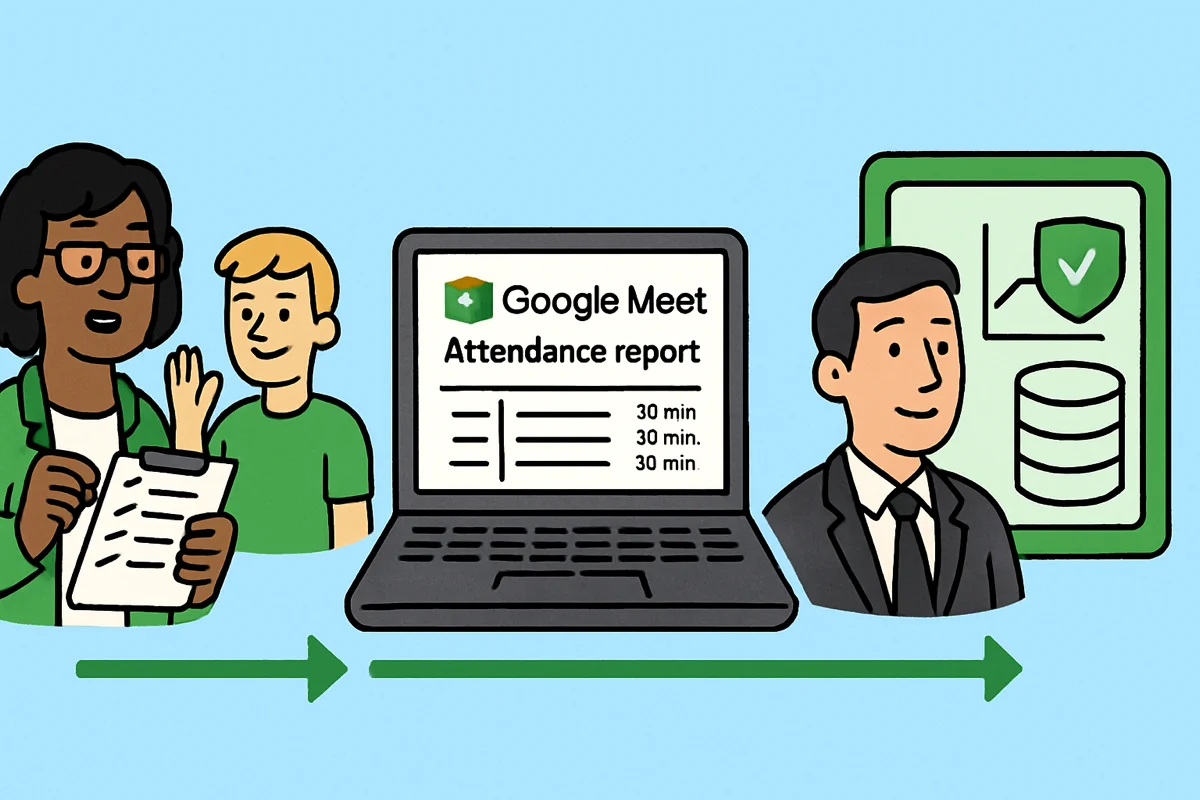
Virtual meetings made attendance records harder
In a physical room, absence is visible. In Google Meet, a participant can join late, drop for three minutes, rejoin from another device, or leave before the final discussion. A simple present-or-absent mark misses that context.
That is why many schools, trainers, and teams now want Google Meet attendance tracking that records join time, leave time, total minutes, and repeated joins across a session.
Early Methods and Their Limitations
In the early days, google meet attendance tracking relied heavily on manual processes. Hosts would perform roll calls, save chat logs, or export participant lists after each meeting.
- Manual roll calls: Prone to oversight and time delays.
- Chat logs: Difficult to parse and organize.
- Exported lists: Risk of losing data or missing participants.
They can work for a five-person meeting. They are easy to miss when a class has thirty students and people are entering and leaving throughout the hour.
Google's Native Attendance Features
To address these challenges, Google introduced built-in attendance reports for certain Workspace for Education and Enterprise accounts. These reports provide basic information such as participant names and times.
Access depends on the Workspace edition, so many free-account users never see those reports. The data also focuses on attendance basics rather than richer classroom records. For official details and setup instructions, refer to Google Meet's built-in attendance tracking.
Why dedicated attendance tools exist
Dedicated tools fill the gap between a rough headcount and a usable record. They can track join and leave times, repeated reconnects, hand raises, breakout activity, historical attendance, and exportable reports.
For teachers and trainers, that detail matters when someone says they were present, but the record shows they joined at 10:12, left at 10:18, and rejoined near the end.
Privacy still matters
Attendance records contain names, timestamps, and meeting history. Treat them like any other school or workplace record.
Privacy-conscious Google Meet attendance tracking should collect only what you need, explain the policy to participants, and avoid sending records to extra services unless there is a clear reason.
Step-by-Step: Setting Up Google Meet Attendance Tracking in 2026
Setting up Google Meet attendance tracking does not need a long project plan. Decide what kind of record you need, choose the method that fits your account type, and test it before the first important session.

Preparing Your Google Meet Environment
Before relying on native Google Meet attendance tracking, verify your Google Workspace edition. Only certain paid editions include built-in attendance reports.
Use clear names for recurring sessions, such as "Math 101 - Spring 2026" or "Weekly Marketing Sync." If your organization allows it, set participant permissions so people cannot enter under unclear names.
Recurring meetings also make later review easier because the same Meet link can map to the same class, cohort, or team.
- Verify Google Workspace edition
- Name meetings consistently
- Set participant permissions appropriately
Small setup choices like these make the attendance record easier to read later.
Manual Attendance Tracking Methods
If automated tools aren't available, manual methods still play a role in Google Meet attendance tracking. Start by using Google Meet's built-in attendance reports, available only for specific Workspace accounts. After each session, download the participant list directly from Meet or your Google Calendar event.
Alternatively, keep a record by copying names from the chat log or capturing the participant window with screenshots. For smaller meetings, a manual roll call at the start or end can work.
- Download reports from Google Meet (if available)
- Export participant lists from Calendar
- Use chat logs or screen captures for backup
These methods take more effort, but they are useful as a fallback when automation is not available. The important part is consistency: capture the same information every time.
Automating Attendance Tracking with Extensions and Apps
Chrome extensions and dedicated apps are usually the easiest step up from manual tracking. They can log join and leave times, generate CSV exports, and keep a historical record without forcing you to reconcile screenshots after every meeting.
For step-by-step guidance, use this Google Meet attendance tracker setup guide for teachers.
- Automatic logging of attendance events
- Instant report generation after meetings
- Easy export to spreadsheets or LMS
Automated tracking is most useful for large classes, frequent meetings, and any session where late arrivals or reconnects matter.
Integrating Attendance with Google Workspace and LMS
You can also move Google Meet attendance tracking data into Google Sheets, Classroom workflows, or a third-party LMS when your organization needs records in one place.
Use Google Apps Script to automate the transfer of attendance data into a shared gradebook or HR system. Zapier can connect Google Meet with other apps, triggering actions like email notifications or spreadsheet updates.
- Sync attendance with Google Sheets
- Automate gradebook updates in Classroom
- Use Zapier for cross-platform workflows
For example, teachers can export attendance into a gradebook, while HR teams can file training completion records after a required session.
Troubleshooting Common Setup Issues
Even with the best setup, google meet attendance tracking can encounter issues. Common problems include missing attendance reports, participant display errors, and synchronization failures with integrated systems.
To resolve these, check for browser compatibility and update extensions regularly. Ensure your Google Meet and Calendar are using the latest versions. If syncing fails, review automation scripts or integration settings for errors.
- Update browsers and extensions frequently
- Check for Google Meet platform changes
- Maintain consistent naming and permissions
Regular audits and spot-checks help maintain accurate records and prevent data gaps across multiple meetings.
Privacy, Security, and Compliance in Attendance Tracking
Privacy is part of Google Meet attendance tracking, not a separate afterthought. The record may include names, timestamps, meeting IDs, and attendance history, so it should be handled deliberately.
Understanding Data Privacy Requirements
Different schools and organizations have different rules for attendance records. Depending on where you operate, you may need to consider frameworks such as:
- GDPR (General Data Protection Regulation) for EU residents
- FERPA (Family Educational Rights and Privacy Act) for US education
- CCPA (California Consumer Privacy Act) for California residents
This is not legal advice, but the practical rule is simple: collect the minimum attendance data you need, tell participants what you are tracking, and follow your school or organization's retention policy.
Secure Attendance Data Storage Practices
Where the data lives matters. Cloud storage can be convenient for teams, but it adds another service that holds meeting records. Local storage keeps the record on your device, but the device still needs normal security controls.
A safer storage setup usually includes:
- Encrypt attendance records at rest and in transit
- Restrict access to authorized personnel only
- Regularly audit storage systems for vulnerabilities
Avoid sharing attendance records with extra tools unless there is a clear operational need.
Minimizing Data Collection and Sharing
Collecting less data reduces risk. For most Google Meet attendance tracking workflows, names, join times, leave times, meeting IDs, and attendance status are enough.
If you export records for wider review, consider whether full names are required or whether a student ID, employee ID, or limited spreadsheet is enough.
Data minimization is also easier to explain to participants. You are recording attendance, not building a dossier.
Transparency and Consent in Attendance Tracking
Tell participants when attendance is being tracked, what will be stored, and who can see it. For schools, follow your institution's process for student and guardian notification.
A short note in the syllabus, meeting invite, training policy, or onboarding document is often enough to avoid surprises later.
Choosing Privacy-Focused Attendance Tools
Selecting the right tools for google meet attendance tracking requires careful evaluation of their privacy features. Look for:
- Clear, accessible privacy policies
- Options for local-only data storage
- No requirement for personal accounts or unnecessary permissions
- Regular security updates and transparency in data handling
Before adoption, review the privacy policy for attendance tracking and confirm the tool fits your organization's requirements.
Advanced analytics and reporting for Google Meet attendance tracking
A useful report should show the details behind the attendance mark: when someone joined, when they left, whether they rejoined, and how that pattern changes across sessions.
Beyond Presence: Engagement and Participation Metrics
Effective Google Meet attendance tracking involves more than capturing who joined a meeting. Detailed reports can include:
- Join and leave timestamps for every participant
- Total duration of presence in each session
- Frequency of attendance across recurring meetings
These details help you spot late arrivals, early departures, and repeated absences without scanning every meeting manually.
Visualizing Attendance Trends
Visual reports make patterns easier to catch. Timelines show reconnects. Calendar views show missed sessions. Participant reports show whether one student is steadily losing attendance time.
For educators seeking more detailed reporting, advanced attendance reports for teachers cover breakout room tracking, hand raise counts, per-student timelines, and export options.
Integrating Attendance Data with Performance Metrics
Some organizations connect attendance data with participation grades, training completion, or certification records. Keep that workflow narrow and documented.
For example, a teacher may use repeated late arrivals as a cue to check in with a student. A training manager may use CSV exports to confirm who completed a required session.
Automating Attendance Reporting
Manual reporting is time-consuming and prone to errors. Automated tools can create regular attendance summaries and export data directly to spreadsheets, learning management systems, or HR platforms.
For a deeper dive into streamlining your process, explore these 5 ways to automate attendance in Google Meet, which cover both built-in and third-party solutions.
How educators and organizations use the record
The value of Google Meet attendance tracking is the follow-up. A clean record helps you decide who needs a note, who needs support, and where the meeting format may be causing problems.
- Spot students or employees who need additional outreach
- Reward consistent participation to boost morale
- Adjust scheduling or meeting formats based on attendance patterns
Attendance reports support earlier follow-up, clearer participation records, and more consistent meeting reviews.
RollCall: visual Google Meet attendance tracking
RollCall adds visual Google Meet attendance tracking in a Chrome extension. It offers:
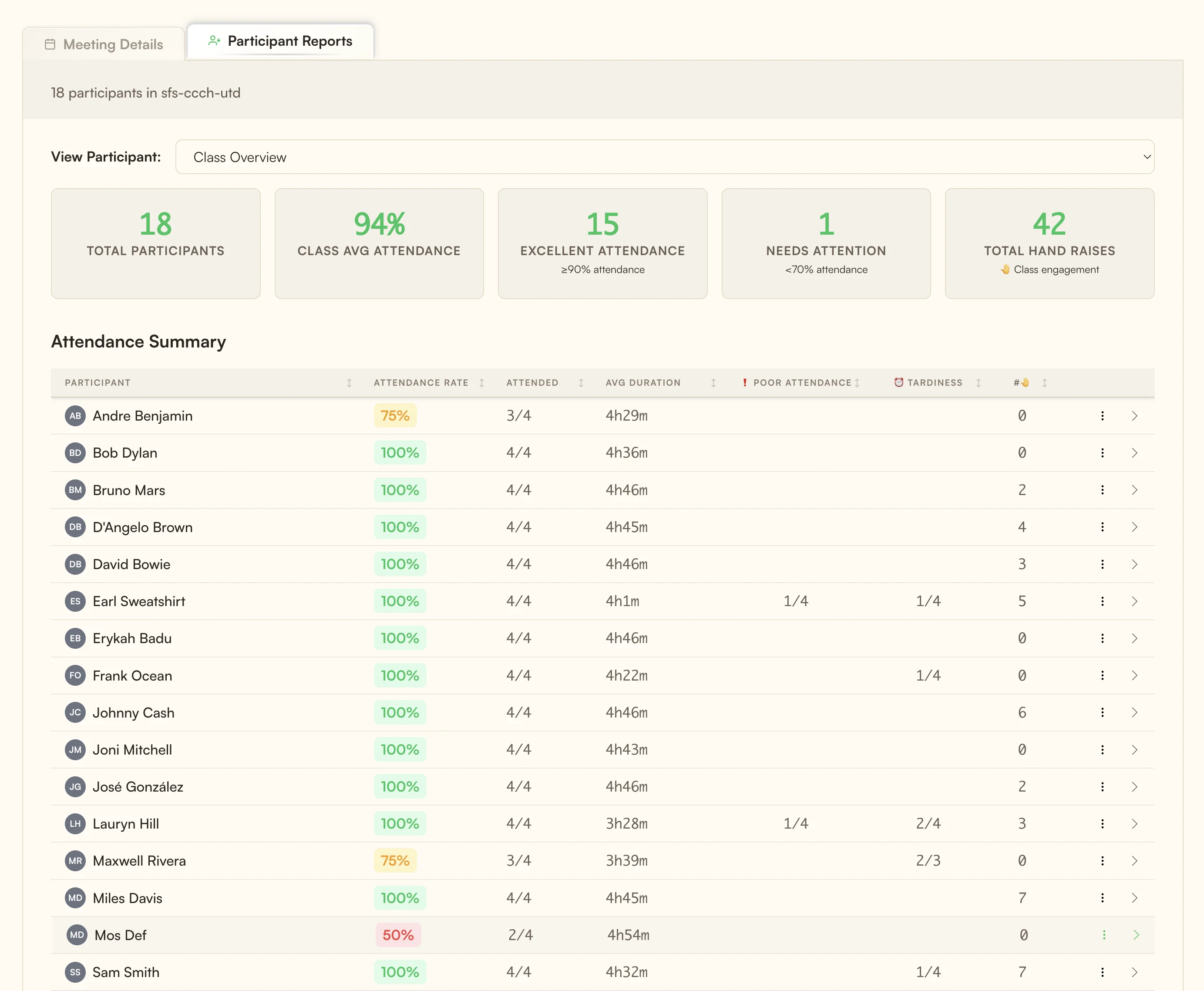
- Automatic attendance capture without manual data entry
- Participant timelines, hand raise counts, and report views
- Calendar views to track participation across multiple sessions
RollCall stores attendance data locally in your browser. There is no account requirement and no cloud dashboard holding your meeting records. Teachers and trainers can review student attendance over time, then export CSV files when they need a spreadsheet record.
Practical tips for effective attendance tracking
Effective Google Meet attendance tracking depends on habits as much as tools. Set a clear policy, tell participants what is being tracked, and review records consistently.
Establish Clear Attendance Policies
Define what counts as present. Is it joining on time, staying for a minimum number of minutes, participating in breakout rooms, or simply appearing in the meeting? Put that rule where participants can see it.
Consider including attendance information in meeting invites or class syllabi. If you need solutions for tracking attendance outside Google Workspace, refer to Google Meet attendance without Workspace for alternative approaches.
A transparent policy prevents avoidable arguments after the meeting.
Train Staff and Participants on Tools and Procedures
Even a good Google Meet attendance tracking tool can fail if people do not know the process. Show staff how to start tracking, export reports, and handle corrections.
- Create step-by-step guides for common procedures.
- Provide quick reference sheets or FAQs.
- Host periodic refresher sessions to address updates.
Short instructions beat long policy docs here. The goal is to make the routine easy enough to repeat every session.
Regularly Audit and Update Attendance Processes
Attendance tracking is not a set-and-forget task. Review your Google Meet attendance tracking workflow occasionally to catch missing reports, outdated tools, or naming problems.
Update your tools and methods as new features or regulations emerge. When comparing attendance tools, check current vendor docs and recent reviews instead of relying on old feature lists.
Small audits keep the records usable when you actually need them.
Leverage Automation Without Sacrificing Accuracy
Automation makes Google Meet attendance tracking easier, but you should still spot-check records for important sessions. Names can change. People can join from unexpected devices. Browser extensions can need updates after Meet UI changes.
- Spot-check attendance logs regularly.
- Cross-reference automated data with participant feedback.
- Adjust automation settings as meeting formats evolve.
A quick spot-check protects you from bad records later.
Foster a Culture of Engagement and Accountability
Attendance tracking should support participation, not become surveillance theater. Share the policy, explain the purpose, and use the record to follow up where it helps.
For a student who disconnects often, the report can start a support conversation. For a recurring training, the export can close the loop on completion records.
Good attendance tracking gives you a cleaner record and fewer after-the-fact guesses. To try the local-first Chrome extension, Add RollCall to Chrome.