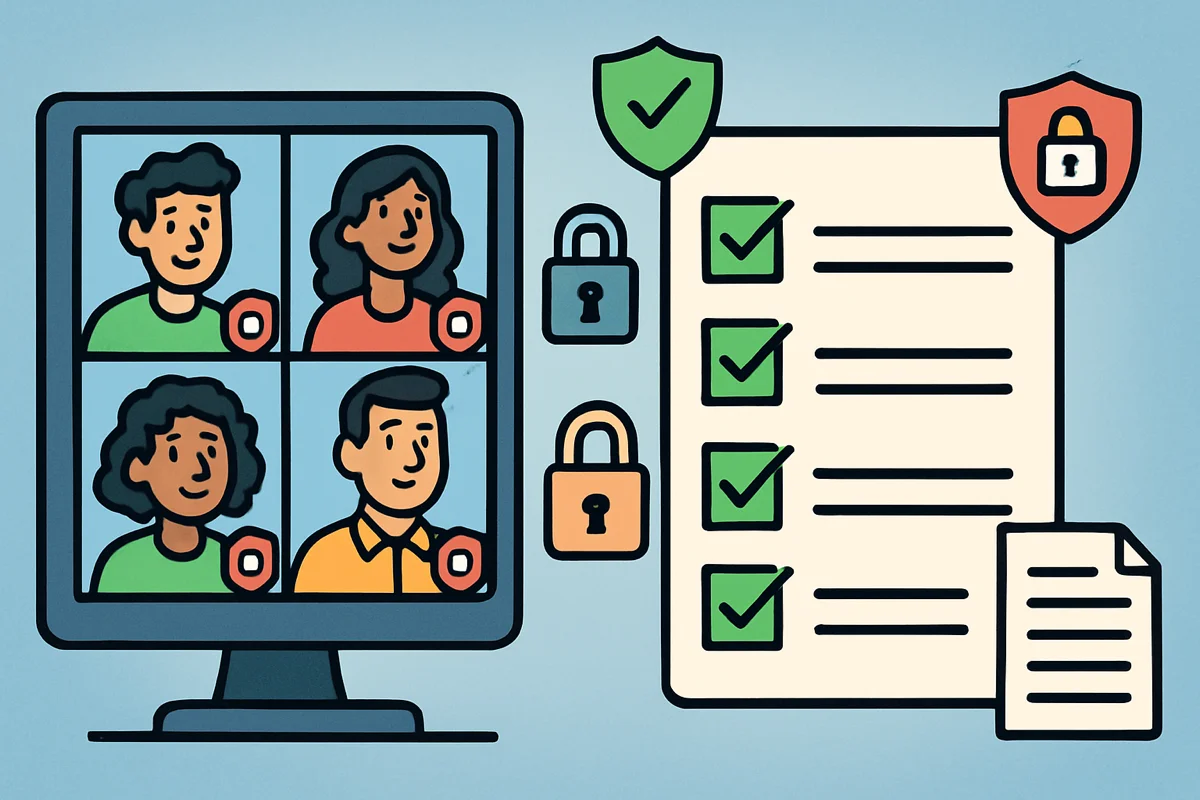
Managing student attendance in Google Meet gets messy fast. Students join late, drop from weak Wi-Fi, rejoin from another device, or leave before the final activity.
This setup guide shows teachers how to install RollCall, test a Google Meet attendance tracker before class, review student timelines, and export CSV records when needed.
Quick start
Ready to start tracking attendance immediately? Download the free RollCall extension and begin automated Google Meet attendance tracking in under 2 minutes.
Add RollCall to ChromeWhy Teachers Need Attendance Tracking
Virtual classroom attendance tracking is not just a formality. It gives teachers a record to use when a student misses time, a parent asks for context, or an administrator needs documentation.
Academic Success Indicators
- Early intervention: Notice students who are missing more class time.
- Participation patterns: See who joins, leaves, rejoins, and stays through the session.
- Class records: Keep attendance data available for review.
- Parent communication: Bring concrete dates and times to conferences.
Administrative Requirements
- Required records: Keep documentation for school attendance policies.
- Funding calculations: Some districts tie funding to attendance data.
- Accreditation: Maintain records your institution asks teachers to keep.
Classroom Management Benefits
- Participation grades: Export attendance records for your gradebook.
- Connection issues: Separate repeated disconnects from simple absence.
- Resource planning: Compare expected and actual class size.
- Session timing: Notice when students tend to leave or drop.
Method 1: RollCall Extension Setup (Recommended)
RollCall is specifically designed for educators who need detailed attendance tracking without the complexity of larger admin systems. This section provides a setup guide with teacher-specific tips and classroom scenarios.
Pre-Setup Requirements
Technical requirements:
- Google Chrome browser (latest version recommended)
- Active Google account (free or paid)
- Stable internet connection
Classroom preparation:
- Student name consistency policy
- Virtual classroom expectations document
- Parent/guardian notification about attendance tracking
- Backup plan for technical difficulties
Step-by-Step Installation
Step 1: Install the extension
- Open the Chrome Web Store
- Open Google Chrome browser
- Navigate to Chrome Web Store
- Verify you're installing the official RollCall extension
- Install RollCall
Click "Add to Chrome" → Confirm Installation → Extension Added- Look for the RollCall icon in your Chrome toolbar
- Green icon indicates the extension is active
- Gray icon means no Google Meet session is detected
- Check permissions
- Extension requests minimal permissions for Google Meet access only
- No access to personal data or other websites
- All data processing happens locally on your device
Step 2: Test before class
- First-time setup
- No account creation required
- No personal information collection
- Extension ready to use immediately upon installation
- Test installation
- Create a test Google Meet session
- Invite a colleague or use a secondary account
- Verify attendance tracking functionality before first class
Daily Usage Workflow
Before Class Starts
5 minutes before class:
- Open the Google Meet session
- Start your scheduled Google Meet
- Ensure RollCall icon is green (active)
- Position participant view to see all students
- Prepare the attendance dashboard
- Click RollCall extension icon
- Review previous session data if applicable
- Prepare any specific tracking notes for the day
- Remind students
- Remind students to use their real names
- Announce attendance tracking (transparency builds trust)
During Class
During the session:
- Watch join and leave patterns
- Monitor join/leave patterns throughout session
- Note any students with multiple disconnections
- Track late arrivals and early departures automatically
- Follow up while it still matters
- Reach out to students who haven't joined after 10 minutes
- Support students experiencing technical difficulties
- Document any special circumstances affecting attendance
After Class Ends
After the session:
- Open the attendance report
- Click RollCall icon to view session summary
- Review detailed timeline for each student
- Note any patterns or concerns for follow-up
- Export records when needed
Export Options: • CSV for Excel/Google Sheets • Detailed timeline view • Summary statistics • Individual student reports - Update your gradebook
- Export attendance data in compatible format
- Update participation grades immediately
- Schedule follow-up with absent or late students
What teachers get
- Less manual work: RollCall records join and leave events while class is running.
- Cleaner records: Timelines show late arrivals, early exits, and reconnects.
- Student follow-up: Participant history helps you spot patterns early.
- CSV export: Move attendance data into spreadsheets or gradebooks.
- Local storage: Attendance data stays in your browser unless you export it.
Want to learn about tracking attendance without any Google Workspace requirements? Check out our guide: Google Meet Attendance Tracking Without Google Workspace.
Conclusion
Setting up Google Meet attendance tracking should be simple enough to repeat every class. Install RollCall, test it once, tell students how attendance is recorded, and review the report after class.
Quick setup summary
- Install RollCall: Add it from the Chrome Web Store.
- Test with a practice session: Confirm the report appears before the first class.
- Set up CSV export: Decide where attendance records go after class.
- Tell students: Explain how attendance is recorded.
- Review patterns: Use the report for follow-up, not just filing.
The useful part is the follow-up. If a student keeps joining late or dropping mid-class, the record gives you a concrete place to start the conversation.
Ready to track attendance?
Use RollCall for Google Meet attendance tracking with local storage, participant timelines, and CSV export.
Add RollCall to Chrome